Fine-tune how the calendar looks
Date text, today's marker, day colors, week numbers, and event blocks. Change as little or as much as you like.
Across looks good from the start. When you want it to look like yours, almost everything on the calendar can change, and every change shows up the moment you make it.
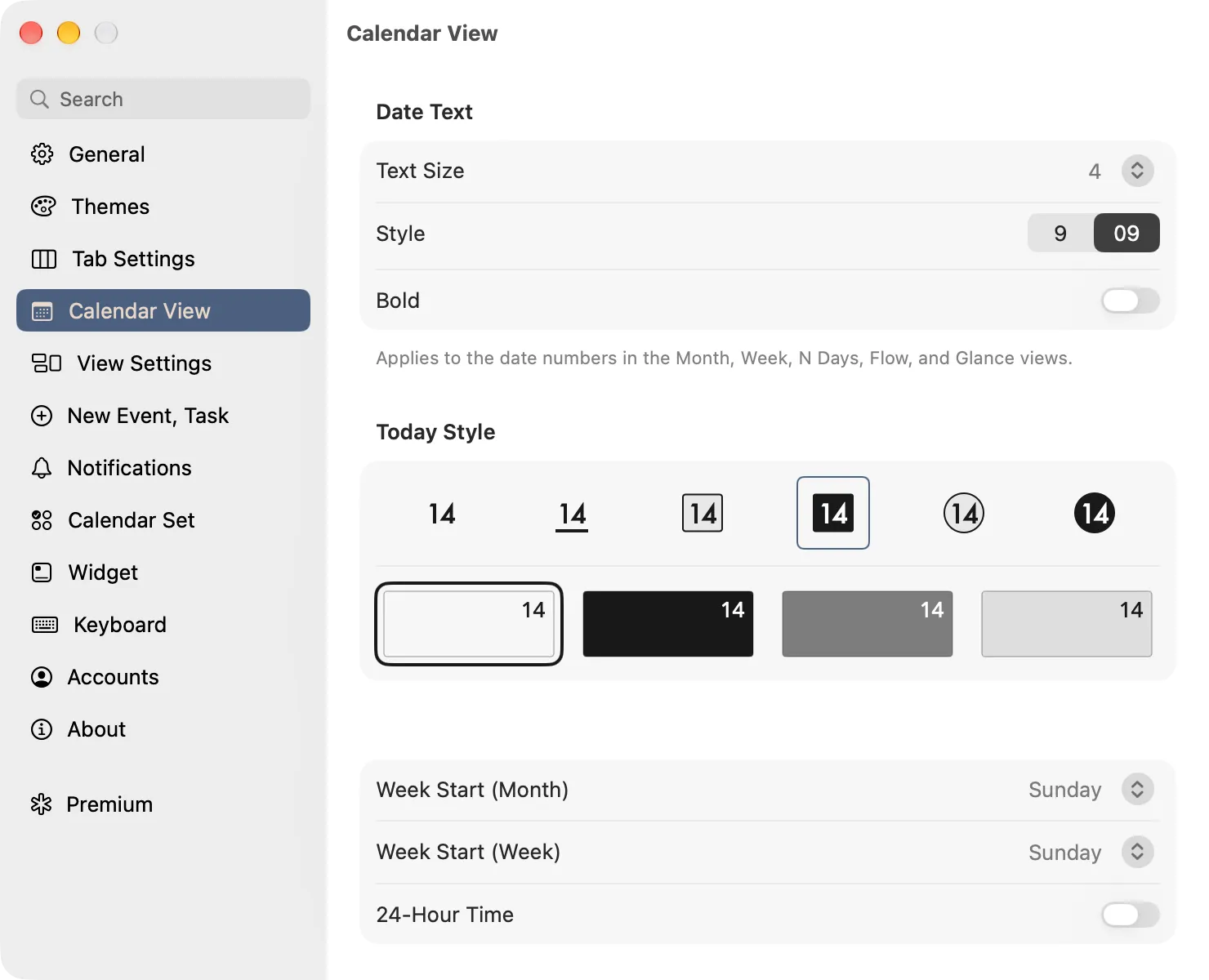
All of this is in Settings → Calendar View. These choices apply to every view. Options for a single view are in the view menu instead. See Change any view’s settings in one click.
A quick tour
| Section | What you can change |
|---|---|
| Date Text | The size and style of the date numbers, and whether they’re bold |
| Today Style | How today is marked, from an underline to a filled circle, and its background |
| Week start and time | The first day of the week, separately for Month and Week, and 24-hour time |
| Day Colors | Colors for holidays, Sundays, Saturdays, and Fridays, and how much weekends are shaded |
| Week Numbers | Show week numbers, counted the usual way or by ISO 8601 |
| Event & Task Blocks | Text size, rounder or squarer corners, titles on two lines, line spacing, and fonts |
| Event Style | How blocks are filled, where the time appears, colored text, and a countdown on each event |
| Tasks | How tasks look and where finished ones go. See Where completed tasks show up |
At the bottom, Show declined invitations keeps invitations you’ve said no to on the calendar.
Text size from the keyboard
Make the text in event blocks bigger or smaller without opening Settings:
| Keys | What they do |
|---|---|
| ⌘+ | Bigger |
| ⌘− | Smaller |
| ⌘0 | Back to the default size |
Fonts
Under Event & Task Blocks, click Fonts to pick any font on your Mac for event and task titles. Custom fonts don’t apply to widgets.
Late-night events
End Hour, under Event Style, decides which day an event that runs past midnight belongs to. See Show late-night events on one day.
Updated November 22, 2026