Add a Google account
Connect Google Calendar to Across for Mac in a few clicks, and see your Google events beside Apple Calendar and Reminders.
Apple Calendar and Reminders show up in Across on their own. Google Calendar takes one sign-in.
Connect your account
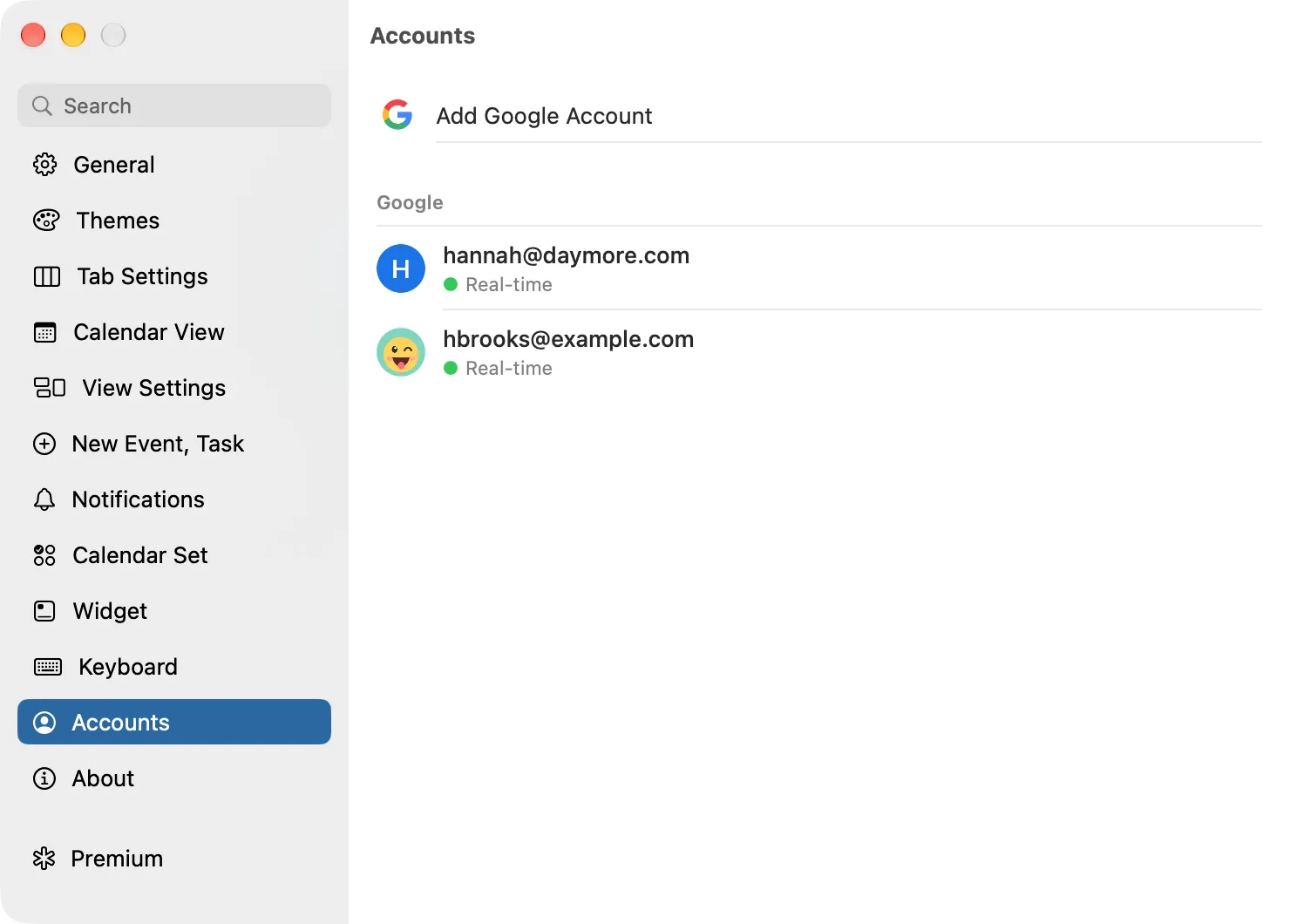
- Open Settings (⌘,) and choose Accounts. You can also click the account button at the bottom left of the sidebar.
- Click Add Google Account.
- Your web browser opens. Choose your Google account and allow access.
- Across comes back to the front and sets things up. You’ll see each step finish, from signing in to turning on real-time sync.
Your Google calendars now appear in the sidebar under your account’s email address. Check or uncheck them like any other calendar.
Check that it’s in real time
Each account in Settings → Accounts shows whether real-time sync is on.
- A green dot and Real-time means changes from Google arrive within moments.
- An orange warning means live updates aren’t coming in. Click the account and choose Enable real-time sync.
Good to know
- Calendars you’ve hidden in Google Calendar stay hidden in Across.
- Google Tasks don’t appear in Across. Tasks in Across come from Apple Reminders.
- If your Google sign-in expires, Across asks you to sign in again. Click Sign In and your browser opens with your account filled in.
Remove an account
Click the account in Settings → Accounts and choose Sign Out. Its calendars disappear from Across. Nothing is deleted from Google, and you can connect again anytime.
To see what Across keeps on its server for Google sync, read How sync works.
Updated November 22, 2026