Quick Move, Change Time, and more
Right-click any event or task to move it to another day this week, change its time, or reply to an invite.
Right-click is the fastest way to change something without opening it. What you see depends on what you clicked.
On an event
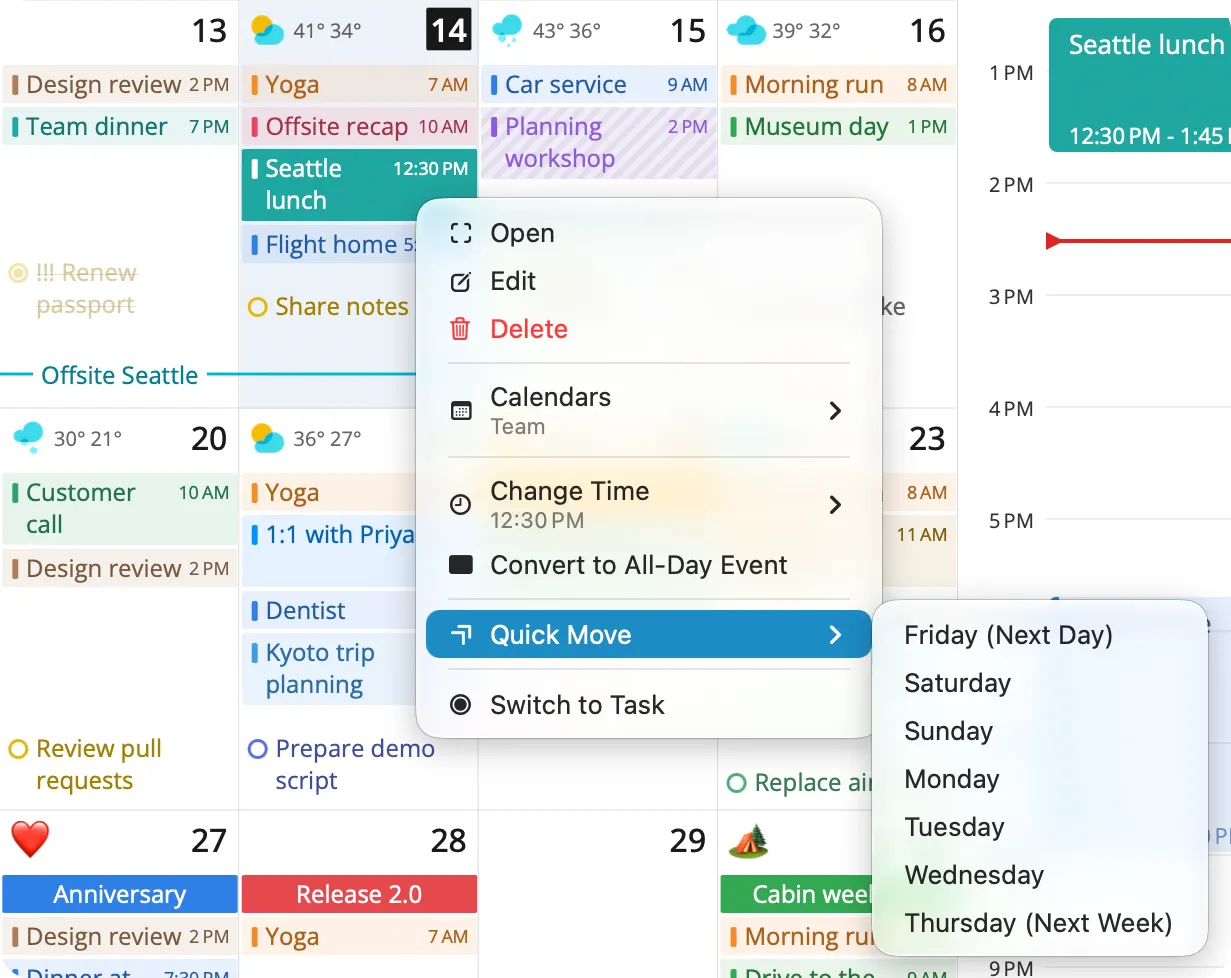
| Item | What it does |
|---|---|
| Open · Edit · Delete | The basics |
| Calendars | Move the event to another calendar |
| Change Time | Pick a new start time. The length stays the same |
| Convert to All-Day Event | Drop the time and keep the day |
| Quick Move | Move it to one of the next seven days, from tomorrow to the same day next week. The time stays the same |
| Switch to Task | Turn the event into a task |
On a task
| Item | What it does |
|---|---|
| Reminder List | Move the task to another list |
| Complete | Check it off, or mark it not done again |
| Priority | None, Low, Medium, or High |
| Quick Move | Move it to one of the next seven days |
| Switch to Event | Turn the task into an event |
On an invitation
Reply with Yes, No, or Maybe right from the menu. Once you’ve replied, your answer has a check mark.
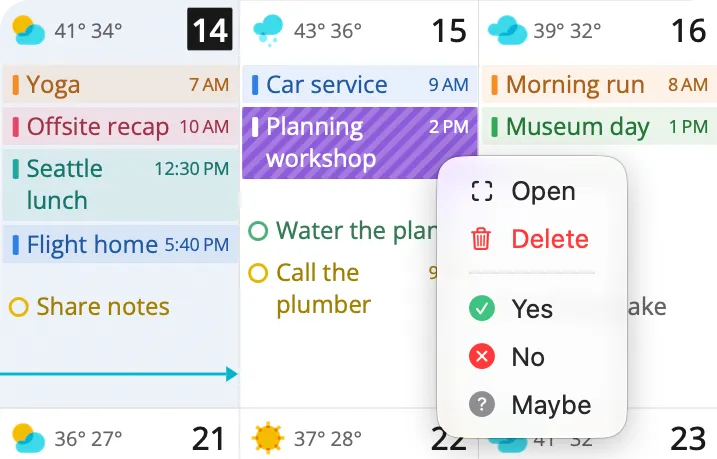
Invitations have stripes until you say Yes. Say No, and the title is crossed out as well.
On a date
Right-click a date, in any view that shows dates, to add something to that day:
- New Event, New Task, or New Span
- Add Emoji, and in Month, Flow, and Glance Flow, Add Highlight
- Your templates, to add one in a single click. With three or more, they’re under New from Templates. See Reuse events with templates.
Selected more than one event? Delete in the menu removes all of them, the same as pressing ⌫.
Updated November 22, 2026