Change any view's settings in one click
Every view has its own settings, one click away at the bottom of the sidebar. No digging through Settings.
Month, Week, Flow, and the other views each keep their own options. The menu shows only the ones for the view in front of you, and the calendar changes the moment you pick one.
Open the view menu
- Show the sidebar if it’s hidden. Press ⌃⌘S, or click the sidebar button in the top bar.
- Click the up arrow button at the bottom right of the sidebar.
- Pick an option. The view updates right away, so you can try a few and keep the one you like.
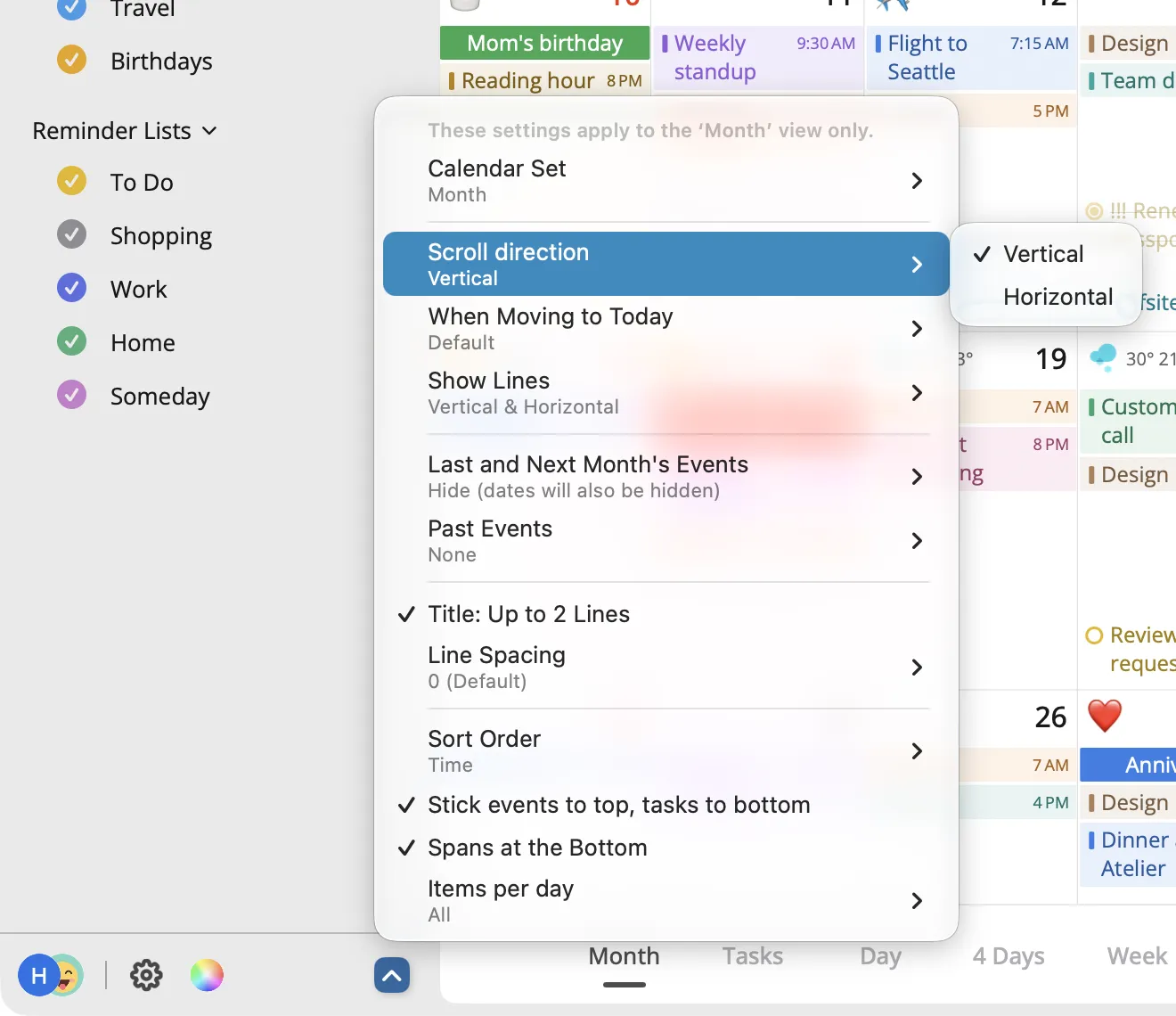
The menu begins with a line like These settings apply to the ‘Month’ view only. Changing Month doesn’t touch Week, and the other way around.
Worth a try in Month view
| Option | What it does |
|---|---|
| Last and Next Month’s Events | Show, fade, or hide events on the days from the months before and after |
| Past Events | Turn days that have passed gray or translucent, so today stands out |
| Items per day | Show up to 3 to 10 items on each day and keep the grid tidy |
| Sort Order | Order each day by time, color, title, or calendar |
| Title: Up to 2 Lines | Let long titles wrap instead of cutting off |
| Scroll direction | Scroll through months up and down, or side to side |
What each view offers
| View | Options |
|---|---|
| Week, Day, N Days | Shortest height for brief events, how solid the event blocks look, icons for repeating events and attendees |
| Day | Put events and tasks on separate sides of the timeline |
| N Days | Show 2 to 5 days at a time |
| Plan | Lay dates out across or down, where the small month sits, sort order |
| Spreads | Sort order |
| Flow | Items per day, past events, divider color |
| Glance | How timed events look, divider color |
| List | Sort order, all days or only days with items |
| Tasks | Which tab opens first |
You may also see Calendar Set at the top of the menu. See Calendar sets for how that works.
The same options in Settings
These options are also in Settings → View Settings, grouped by view. The menu is quicker while you’re looking at a view. Settings is handy when you want to change several views at once.
Choices that apply to every view, like fonts, text size, and how today is marked, are in Settings → Calendar View.
Updated November 22, 2026