Choose and order your views
Keep the views you use, put them in your order, and jump to each with ⌘1 to ⌘9.
The tab bar at the bottom of the window holds every view, from Month to World Time. You don’t need all of them. Put the ones you use first and tuck the rest away.
Reorder and hide tabs
- Open Settings (⌘,) and choose Tab Settings.
- Under Tab Order, drag the views into the order you like.
- Set Number of Tabs to how many views you want in the tab bar. A Hidden tabs below line appears in the list, and views under it leave the tab bar.
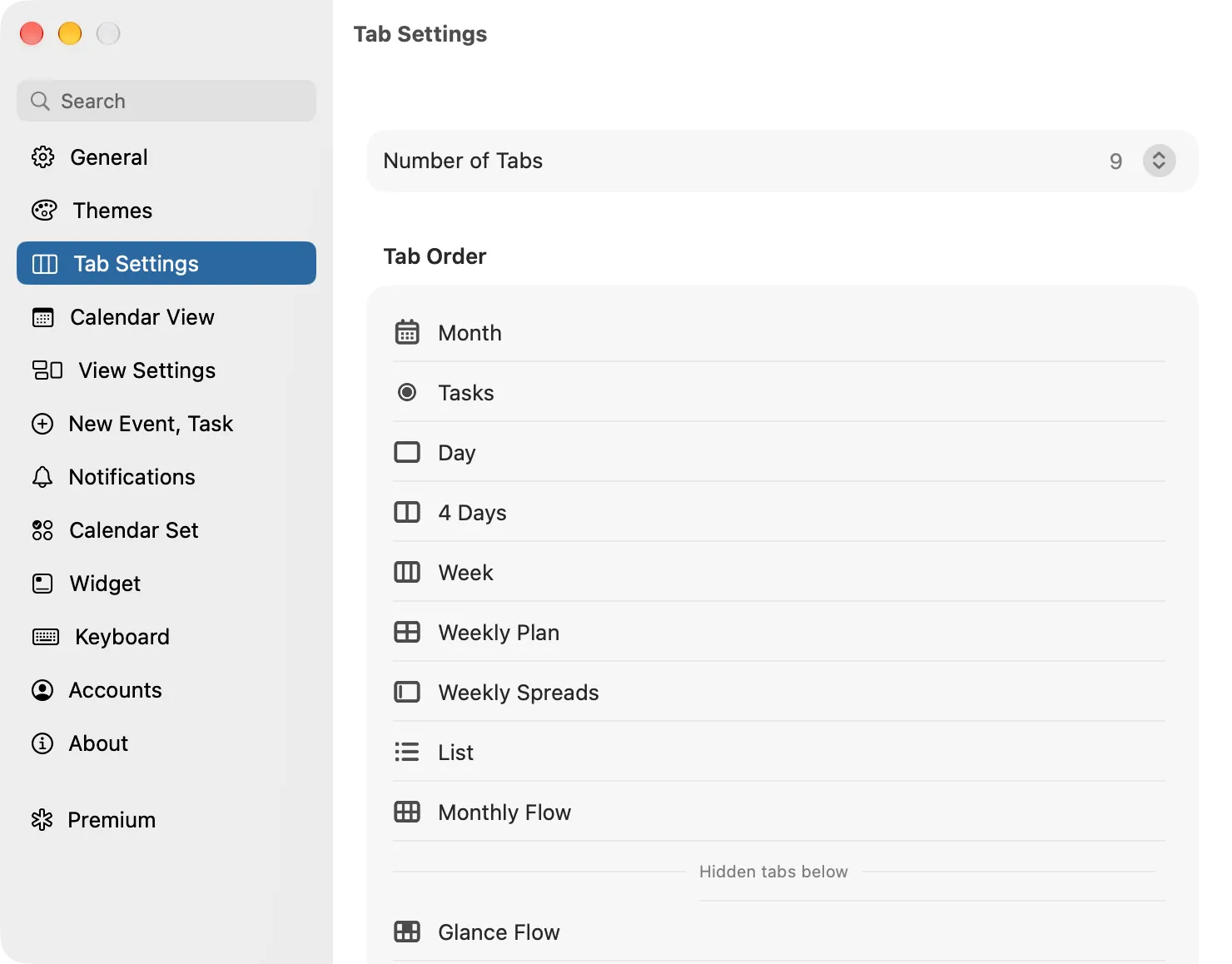
To change what’s hidden, drag a view above or below the line, or drag the line itself. One tab always stays visible.
Hidden views aren’t gone. You’ll still find them in the View menu in the menu bar, below a separator.
Jump with ⌘1 to ⌘9
⌘1 opens the first tab in the bar, ⌘2 the second, up to ⌘9. The shortcuts follow your order, so put your favorite views first. Hover over a tab to see its shortcut.
Choose the view Across opens with
Go to Settings → General → Start-up View and pick a view. It can be one you’ve hidden from the tab bar.
Updated November 22, 2026