Where completed tasks show up
Keep a finished task on the day you completed it, or on the day it was due. Hide it, dim it, or strike it through.
When you check off a task, should it stay where it was due, or move to the moment you actually did it? Across lets you decide, and how finished tasks look.
Everything here is under Settings → Calendar View → Tasks.
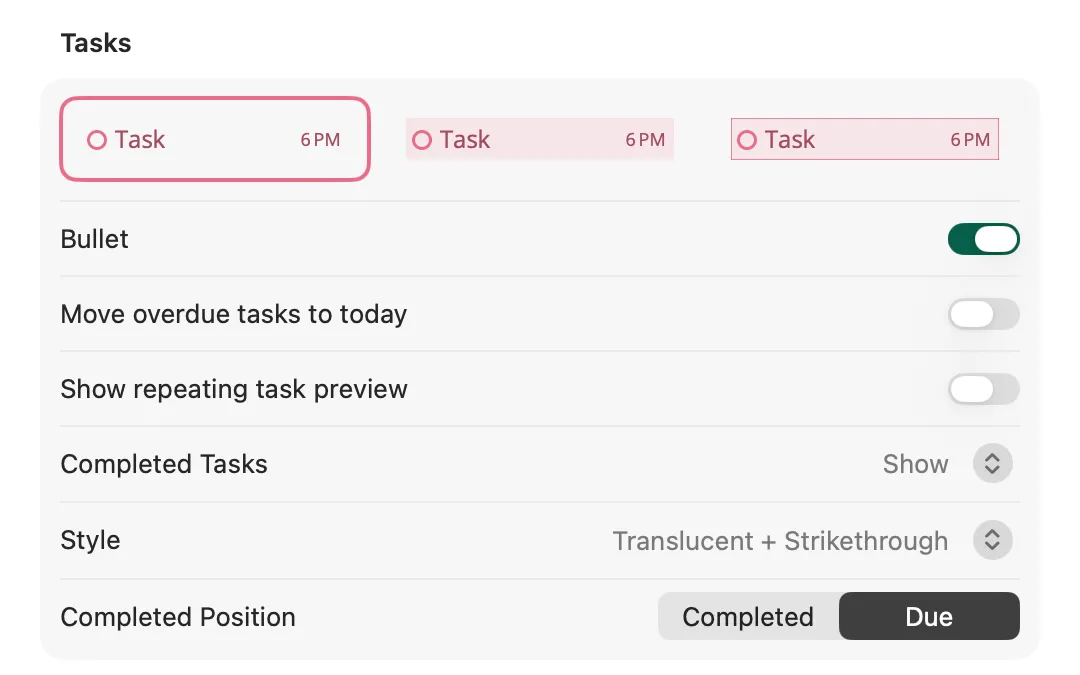
Completed Position
| Choice | Where a finished task appears |
|---|---|
| Completed | On the day and at the time you checked it off. Looking back, your calendar shows what you actually got done and when |
| Due | On its due date, where it was before you finished it |
Show or hide them
Completed Tasks decides whether finished tasks stay on the calendar:
- Show: keep them all
- Hide: remove them once they’re done
- Show only today: keep today’s, hide the rest
How they look
Style sets how a finished task looks: Normal, Translucent, Strikethrough, or Translucent + Strikethrough.
Tasks you didn’t get to
Turn on Move overdue tasks to today and unfinished tasks from earlier days show up on today, so nothing slips by.
Updated November 22, 2026