Themes and dark mode
Pick one theme for light and one for dark. Across switches with your Mac.
Across keeps two themes: one for light and one for dark. It switches between them with your Mac, or stays the way you set it.
Pick your themes
- Open Settings (⌘,) and choose Themes.
- Light themes are at the top and dark themes below the dotted line. Click one in each. The theme in use right now is named next to Themes.
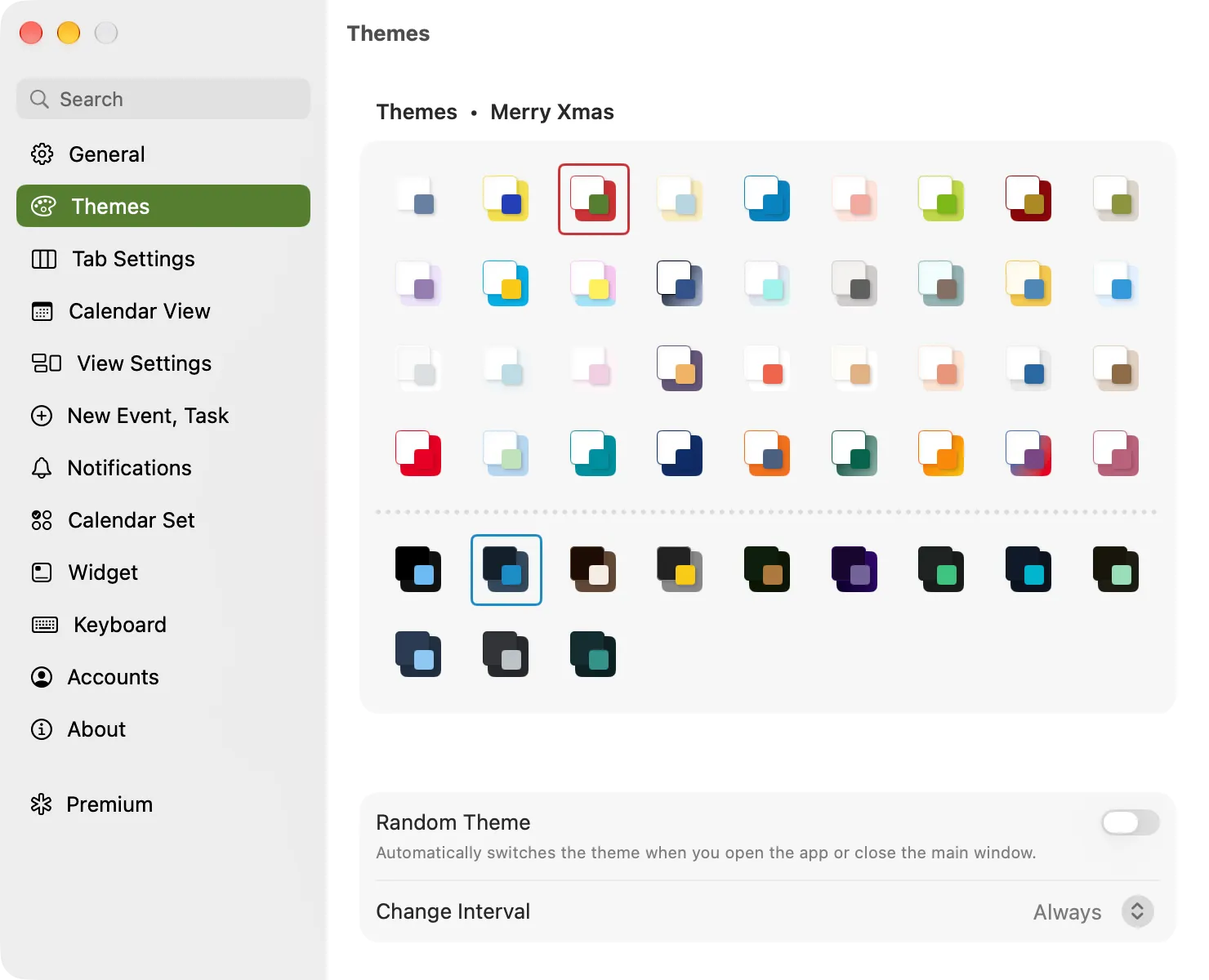
Clicking a theme also switches Across to that mode, so you see it right away.
Some plain themes, like Light and Dark, let you choose an Accent Color for buttons and selections. It appears under the themes when one of those is picked.
Light, dark, or automatic
- Settings → General → Appearance: Use System Setting follows your Mac. Light or Dark keeps Across that way.
- The sun or moon button in the top bar switches Across between light and dark in one click. It changes only Across, not the rest of your Mac.
Let it surprise you
Turn on Random Theme and Across picks a new light theme and a new dark theme on its own. Change Interval sets how often, from every time you open Across to once a week.
Widgets
Widgets have their own setting: Settings → Widget → Widget Appearance. Follow the system, or keep them light or dark.
Updated November 22, 2026