Move your settings to another Mac
Export your Across settings to a file and import them on another Mac.
Spent a while getting Across just right? Save your settings to a file and bring them to another Mac in one step.
Export
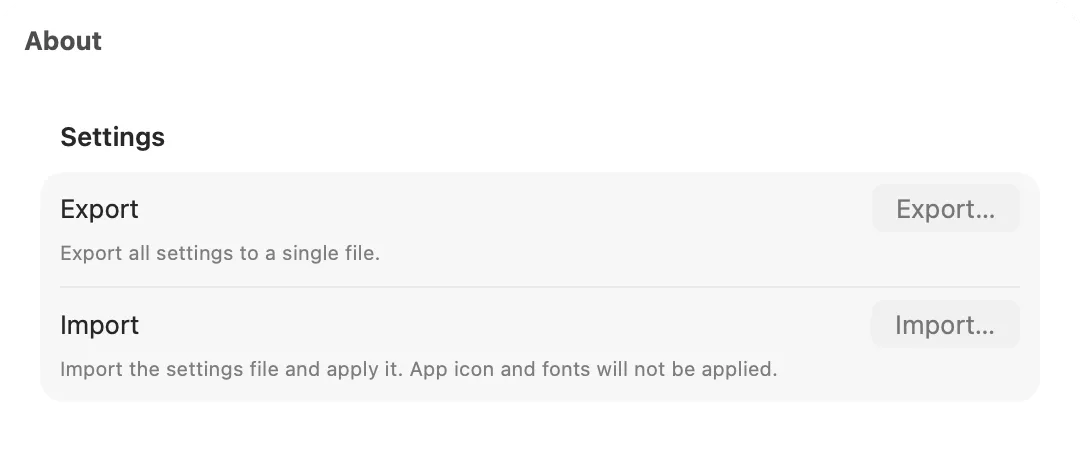
- Open Settings (⌘,) and choose About.
- Under Settings, click Export….
- Choose where to save the file. It’s named like AcrossSettings with the date, and ends in .astt.
Import
- Copy the file to the other Mac.
- Open Settings → About there and click Import….
- Choose the file. Across applies the settings and restarts itself.
Importing replaces the settings on that Mac with the ones in the file. A file exported from Across on iPhone or iPad works too.
What comes along
Most of what you’ve set up in Settings: themes, how the calendar looks, view options, defaults for new events and tasks, notifications, and more.
What stays behind
- Google accounts. Sign in again on the new Mac.
- Calendar sets and which calendars each view shows. Your calendars can be different on each Mac.
- Default calendar and default reminder list.
- The order of your tabs.
- App icon and fonts.
Emoji and highlights aren’t in the file because they sync on their own through iCloud. Spans are events, so they’re already in your calendars.
Updated November 22, 2026