Views you might have missed
Countdown, World Time, Year in Pixels, and Glance Flow. Each one does a single job well.
Past Month, Week, and Day, the tab bar has a few views that are easy to scroll past. Each one answers a single question.
Countdown: how long until…?
Countdown lists the days ahead that have something on them, starting today, with how many days are left until each one.
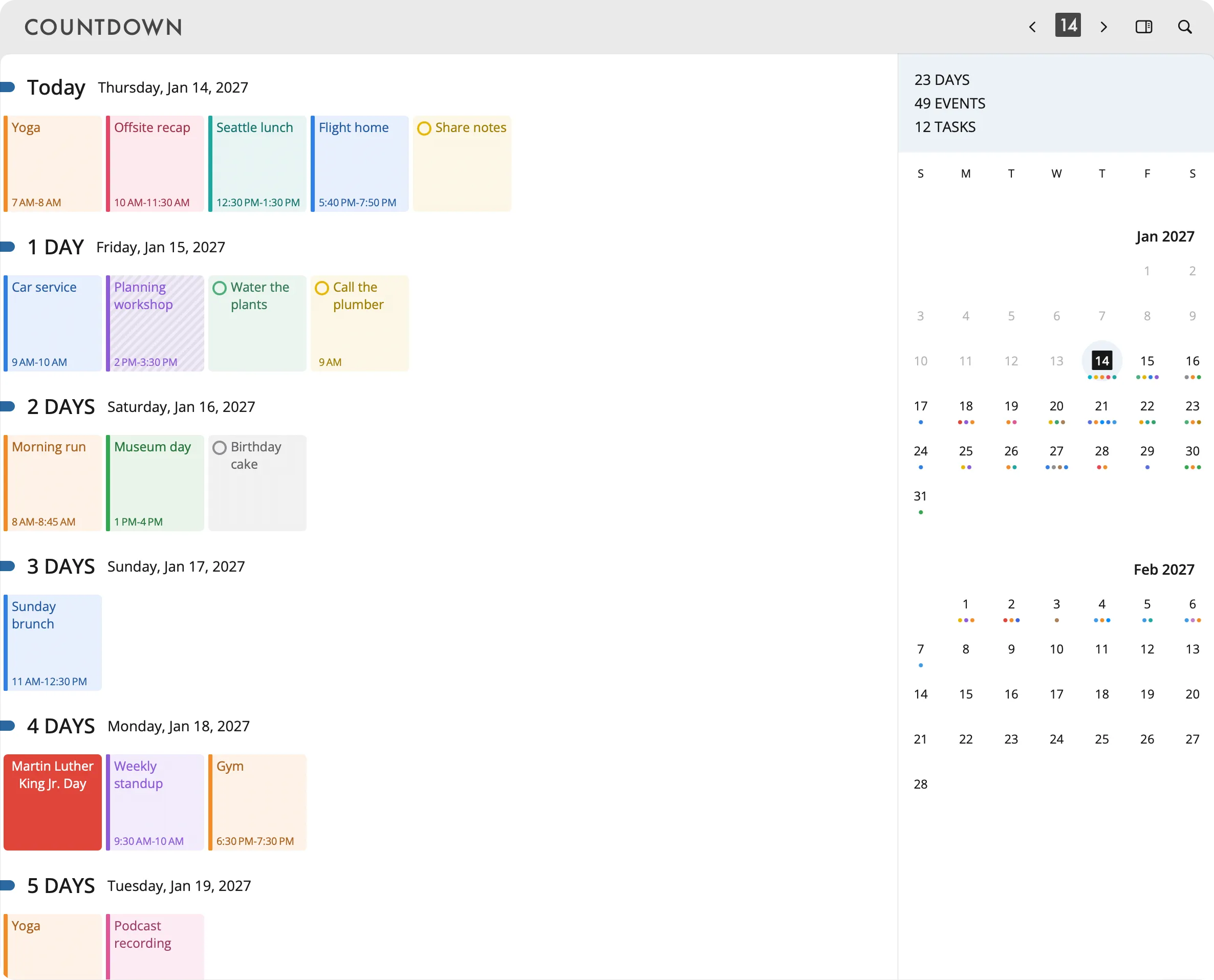
There’s nothing to set up. It shows what’s already on your calendars, up to two years out. To count down only to some things, pick which calendars it shows in the sidebar while you’re in Countdown.
The panel on the right adds up how many days, events, and tasks are coming, with a small month to jump to a date.
World Time: what time is it there?
World Time shows a card for each city you add, with the local time, the date, and the difference from your own time.
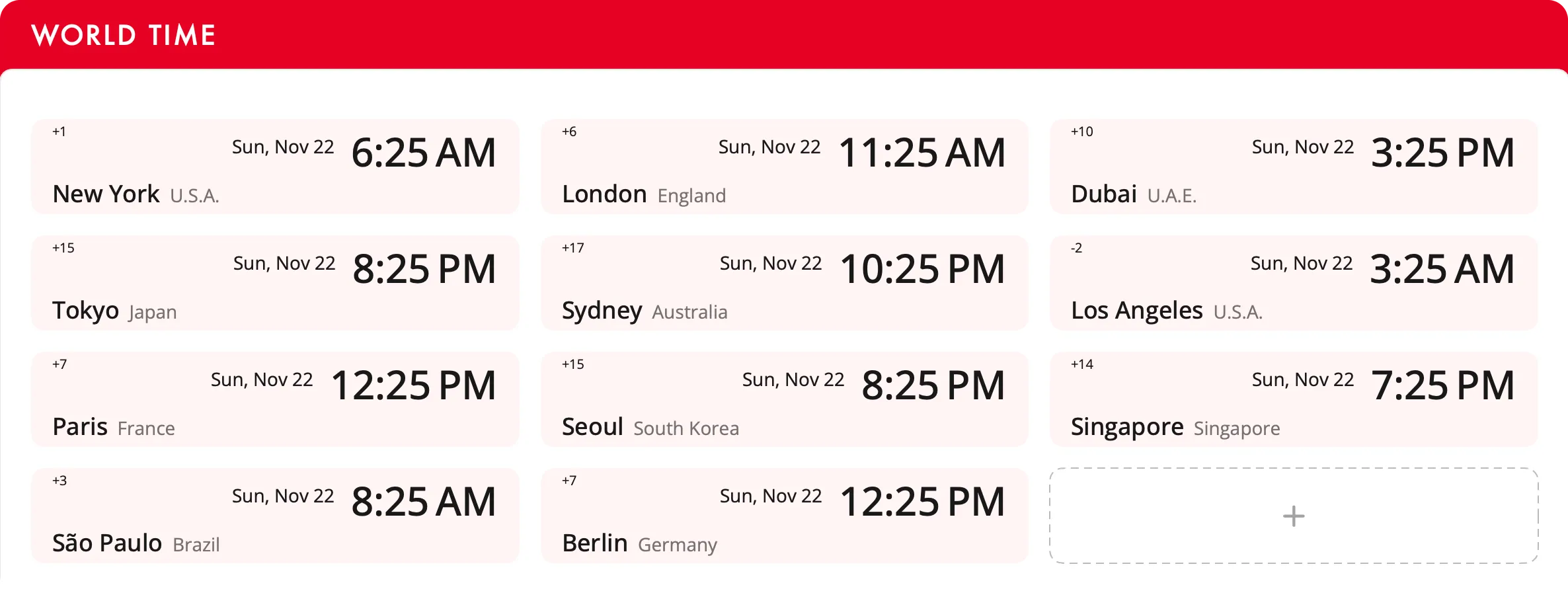
- Add a city: click the + card, or right-click and choose Add…. Search for a city or country and click it.
- Reorder: drag the cards.
- Remove: right-click a card and choose Delete…, or select it and press ⌫.
Year in Pixels: what did my year look like?
Year in Pixels fits a whole year on one screen, one small square per day. Each square is filled with the colors of that day’s events and tasks.
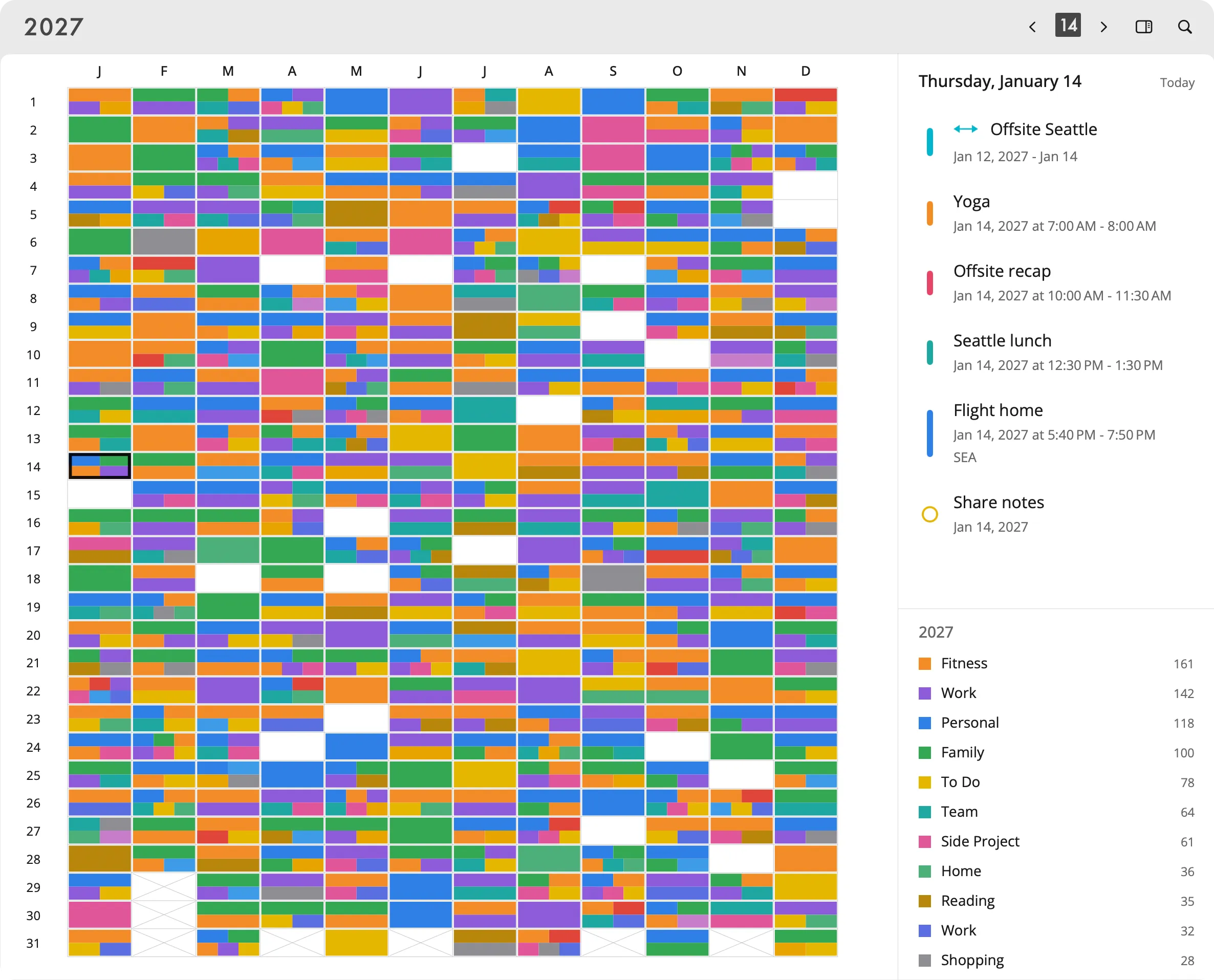
Click a day to see its events on the right. Below them, a legend shows each color, the calendars behind it, and how many days it appears. Use ‹ › to change the year and the arrow keys to move from day to day.
Glance Flow: how busy is each day?
Flow and Glance Flow both scroll through weeks without breaking them into months.
- Flow shows events as blocks with their titles, like Month.
- Glance Flow draws each day as a tiny 24-hour timeline, with all-day events as bars on top. Busy days look full, free hours look empty, and you can read a week at a glance.
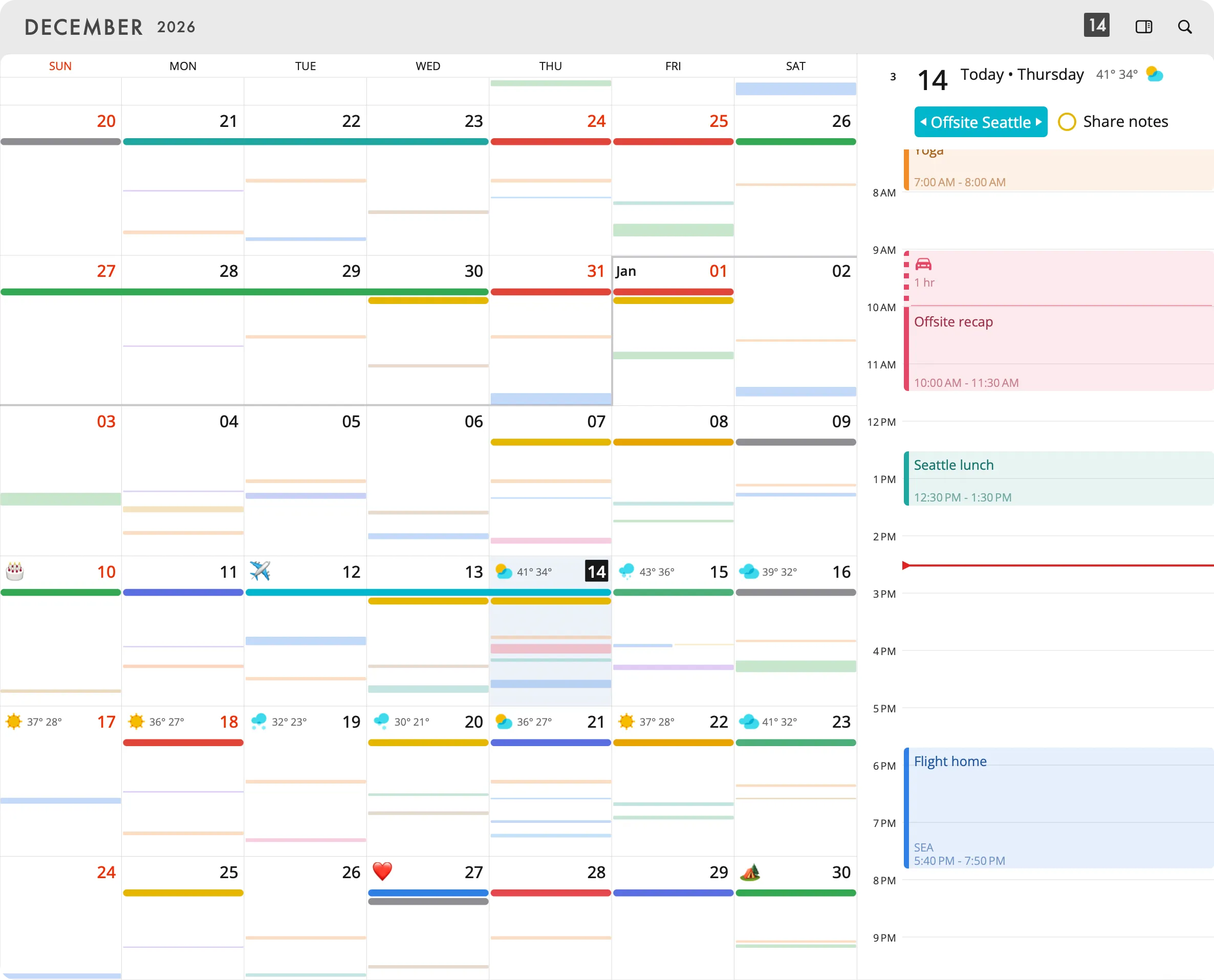
In both, click a date to see that day hour by hour on the right.
Updated November 22, 2026