Emoji, highlights, and spans
Mark birthdays, trips, and deadlines right on the calendar.
Some days deserve to stand out before you even read them. Put an emoji on a birthday, highlight exam week, or draw a line across a trip. All three start from the same place: right-click a date.
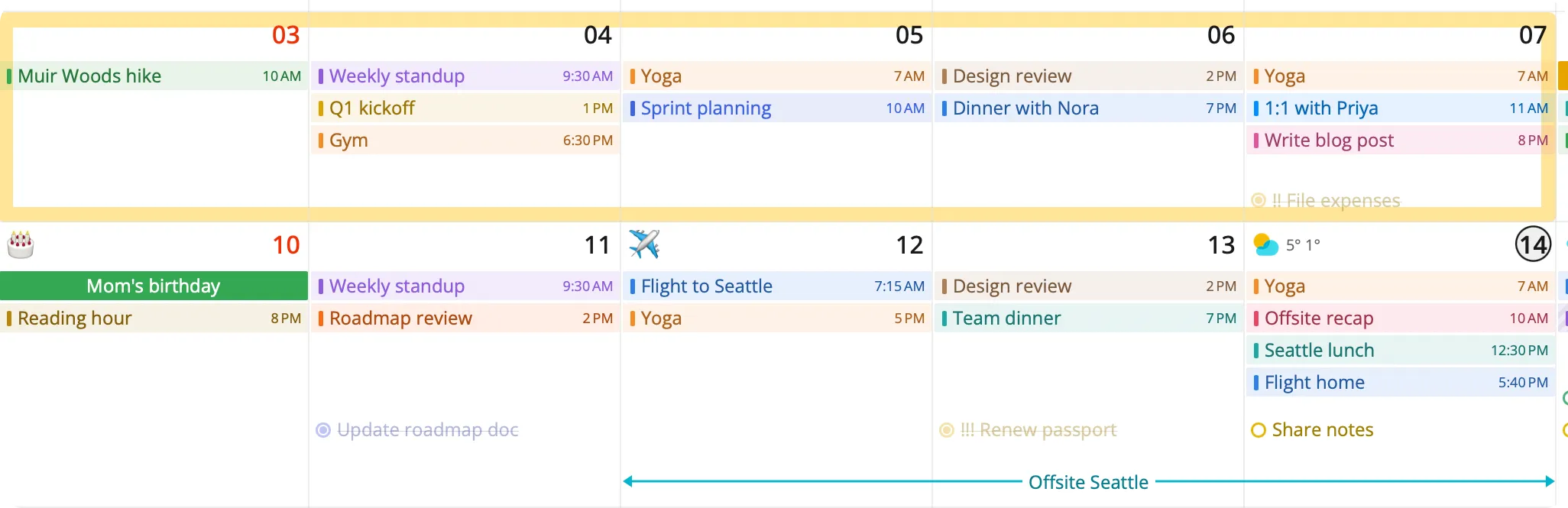
Emoji
- Right-click a date and choose Add Emoji.
- Click an emoji. It appears on that date.
Recently used emoji are at the top, and you can change the skin tone. To change or remove it later, double-click the emoji, or right-click the date and choose Edit Emoji.
Highlight
- In Month, Flow, or Glance Flow, right-click a date and choose Add Highlight.
- Set when it starts and ends.
- Choose a Border, a Background, or both, with their colors. A border can be solid or hatched, thick or thin. Set how strong each one looks with Opacity.
- Click Add.
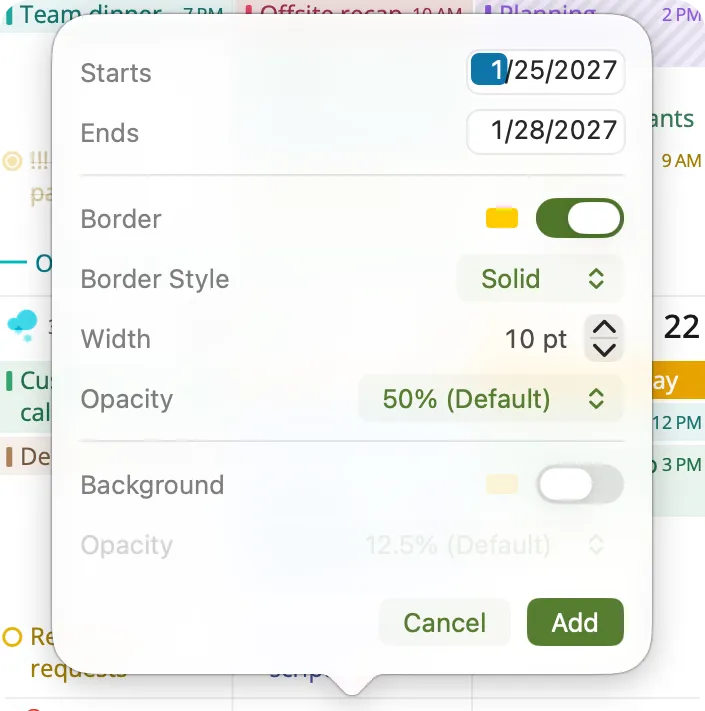
Faster: hold ⌥ and drag across the days you want. The highlight window opens with those days already filled in.
To change or remove a highlight, right-click one of its days and choose Edit Highlight.
Span
A span is an all-day event drawn as a line across its days, with the title right on it. Good for trips, projects, and anything that runs for a while.
- Right-click a date and choose New Span.
- Give it a title and the days it covers.
- Pick a Shape, like an arrow or a bar, and where the Title sits.
Because a span is a real event, it’s saved in the calendar you choose. Apple Calendar and Google Calendar show it as a regular all-day event.
Where they’re kept
Emoji and highlights belong to Across. They never appear in Apple Calendar or Google Calendar. Across keeps them in your iCloud account, so they show up on Across on your other devices too.
Updated November 22, 2026