Reuse events with templates
Save events you add often as templates, then add them to any date in one step.
Weekly standup, gym, paying rent. If you add the same thing again and again, make it a template once. After that it’s one click.
Make a template
- Open the Templates tab.
- Click the + button in the tab bar, or right-click an empty spot and choose Event Template or Task Template.
- Fill it in like a normal event or task. Templates have times but no dates. Click Add.
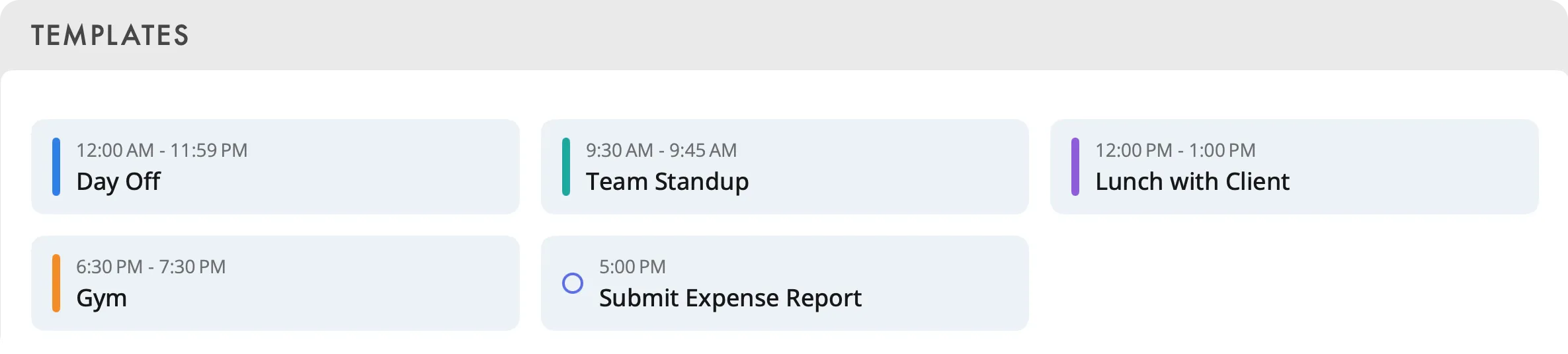
A template keeps nearly everything: title, calendar or list, time and length or all-day, location, alerts, notes, repeat, color, link, time zone, and travel time. Task templates keep their priority too.
Double-click a template to change it. Drag templates to reorder them. To delete one, right-click it and choose Delete…, or select it and press ⌫.
Don’t see the Templates tab? Check Settings → Tab Settings. See Choose and order your views.
Use a template
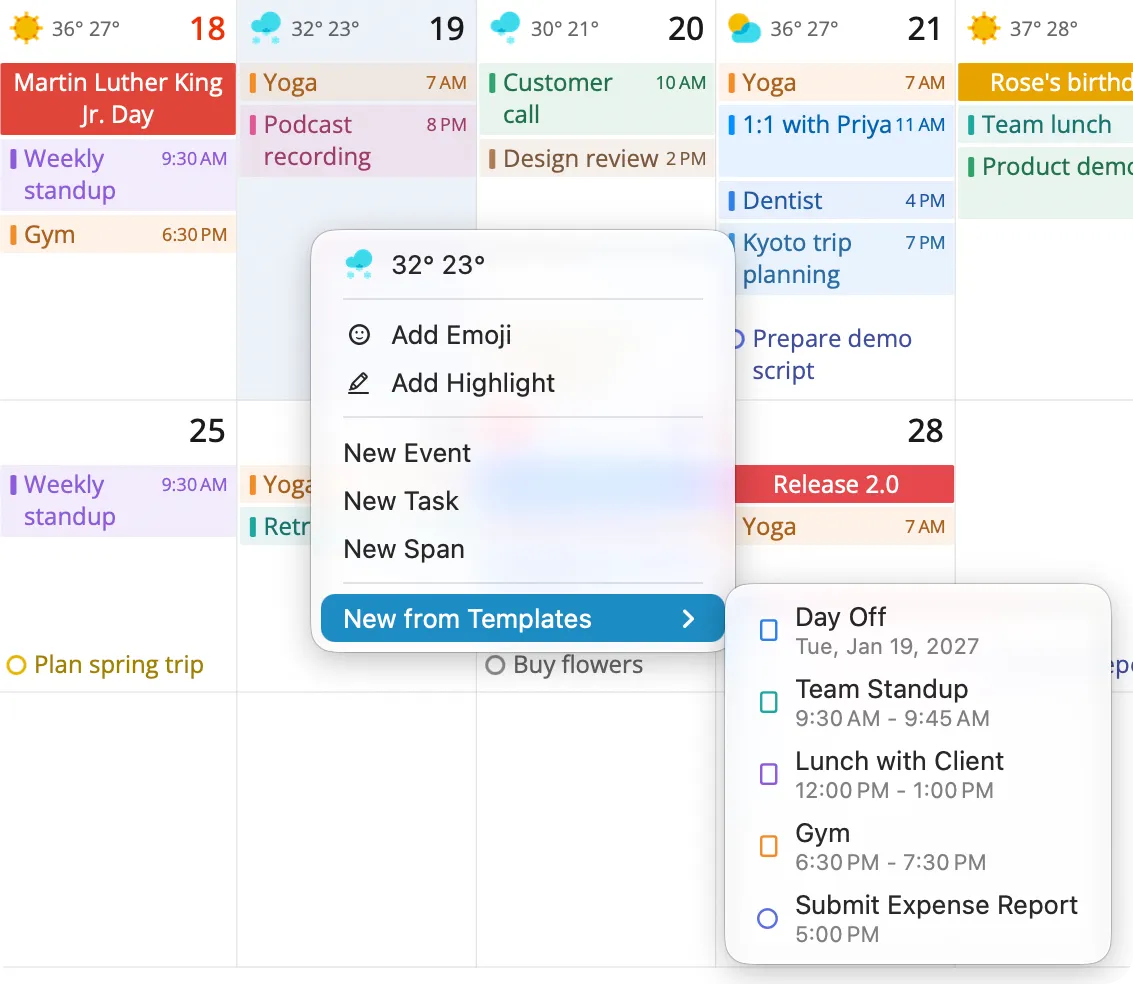
From a date. Right-click a date and pick the template. It’s added to that day right away, no form to fill in. With three or more templates, they’re under New from Templates.
While adding an event or task. In the new event or task window, show all fields and choose Add from Template. The fields fill in from the template, and you can still change them before adding.
Good to know
Templates are kept on this Mac.
Updated November 22, 2026