Give each widget its own calendars
Each widget can show a different calendar set. Right-click a widget, choose Edit with its name, and pick one.
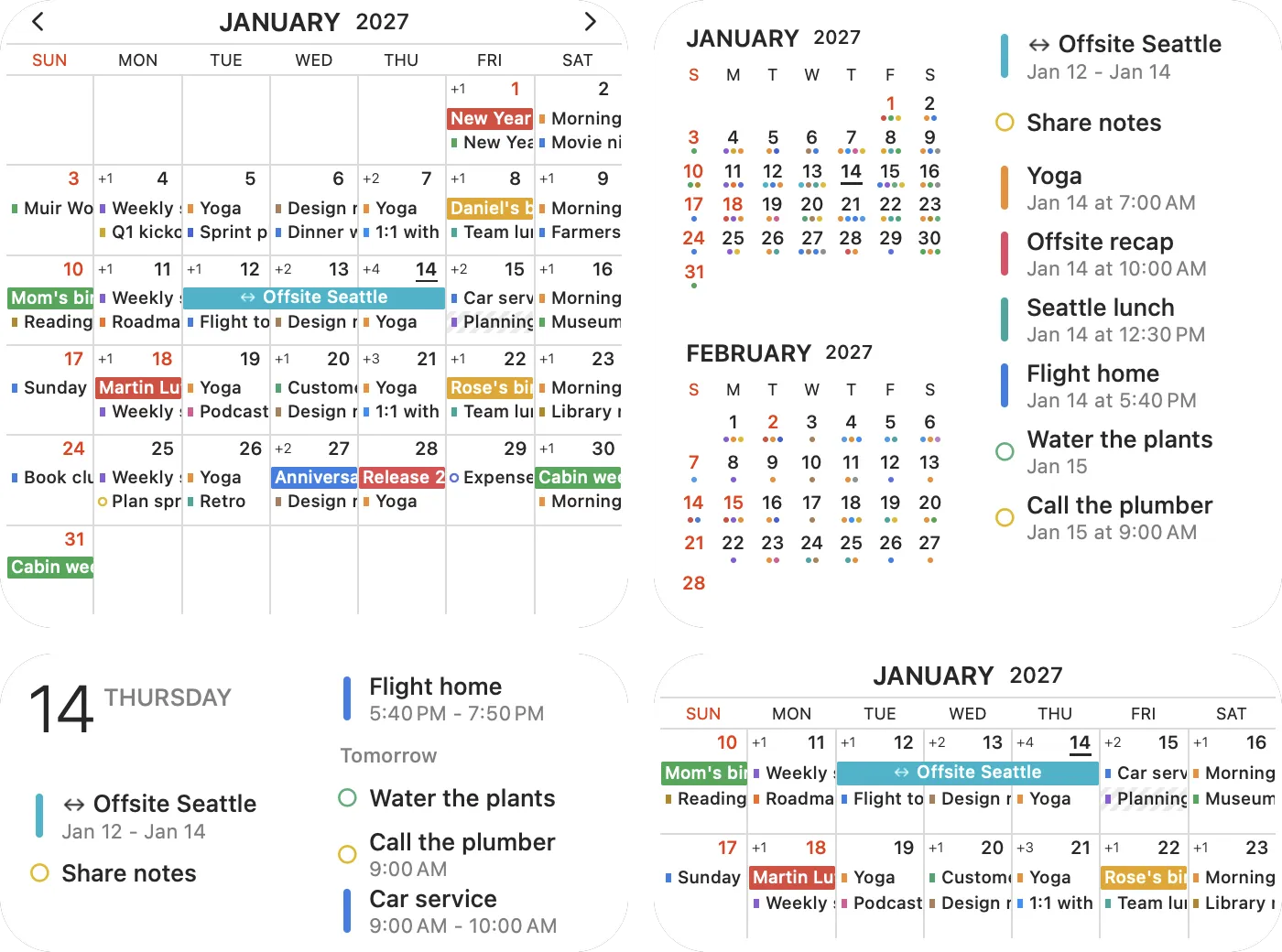
Across has widgets in every size, from a small calendar to a month that fills the desktop. Each one can show its own calendars: work on one, family on another.
Add a widget
- Right-click the desktop and choose Edit Widgets. You can also open Notification Center and click Edit Widgets at the bottom.
- Search for Across.
- Drag a widget to the desktop or into Notification Center.
You’ll find month and week grids, Up Next lists, day and week timelines, tasks, and countdowns, each in a few sizes.
Choose its calendars
- Right-click the widget and choose Edit followed by its name, like Edit “Month”.
- Open Calendar Set and pick one.
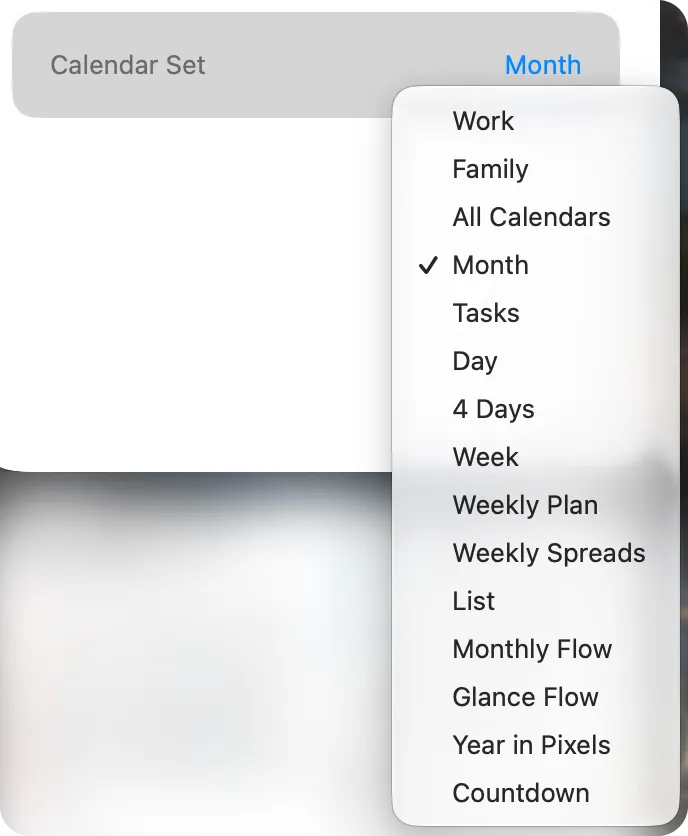
The sets you’ve made come first, then All Calendars, then the set that belongs to each view, like Month. Picking Month shows whatever the Month view shows. To make your own sets, see Calendar sets.
Some widgets have a few more options in the same place. Two Weeks can start from last week, and Day and Week let you choose the hours they show.
Widget style
Settings → Widget changes all your Across widgets at once:
- Widget Appearance: follow the system, or always light or always dark
- Widget Text Size: smaller or larger text
- Show Vertical Lines and Show Horizontal Lines
Updated November 22, 2026