Calendar sets: the right calendars in each view
Group calendars into a set, then choose it for any view or widget. Work in one place, family in another.
Each view in Across remembers its own calendars. Hide Work in Month and it can still show in Week. A calendar set takes this one step further: a named group of calendars and reminder lists that you can pick for any view or widget.
Make a set
- Open Settings (⌘,) and choose Calendar Set.
- Click Add, give the set a name, like Work or Family.
- Check the calendars and reminder lists it should show, then click Add.
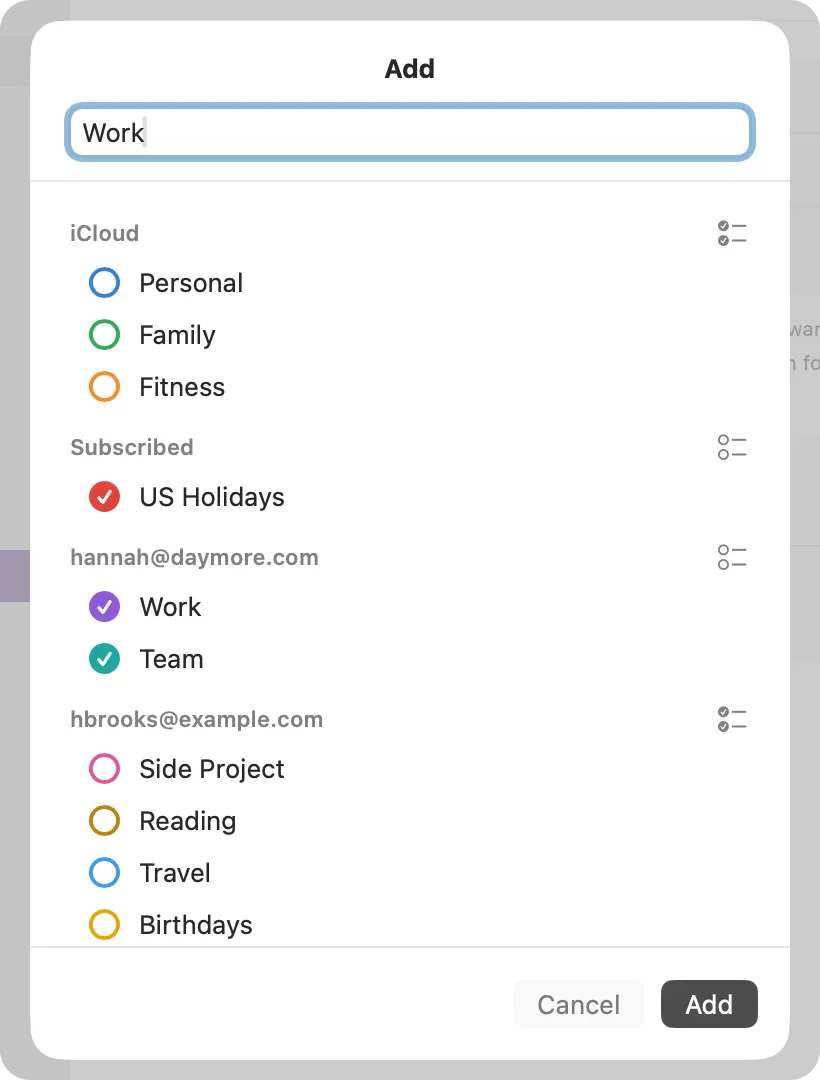
Click a set to change it later, then click Done. To delete a set, right-click it, or click Delete while editing it.
Use a set in a view
- Open the view, for example Month.
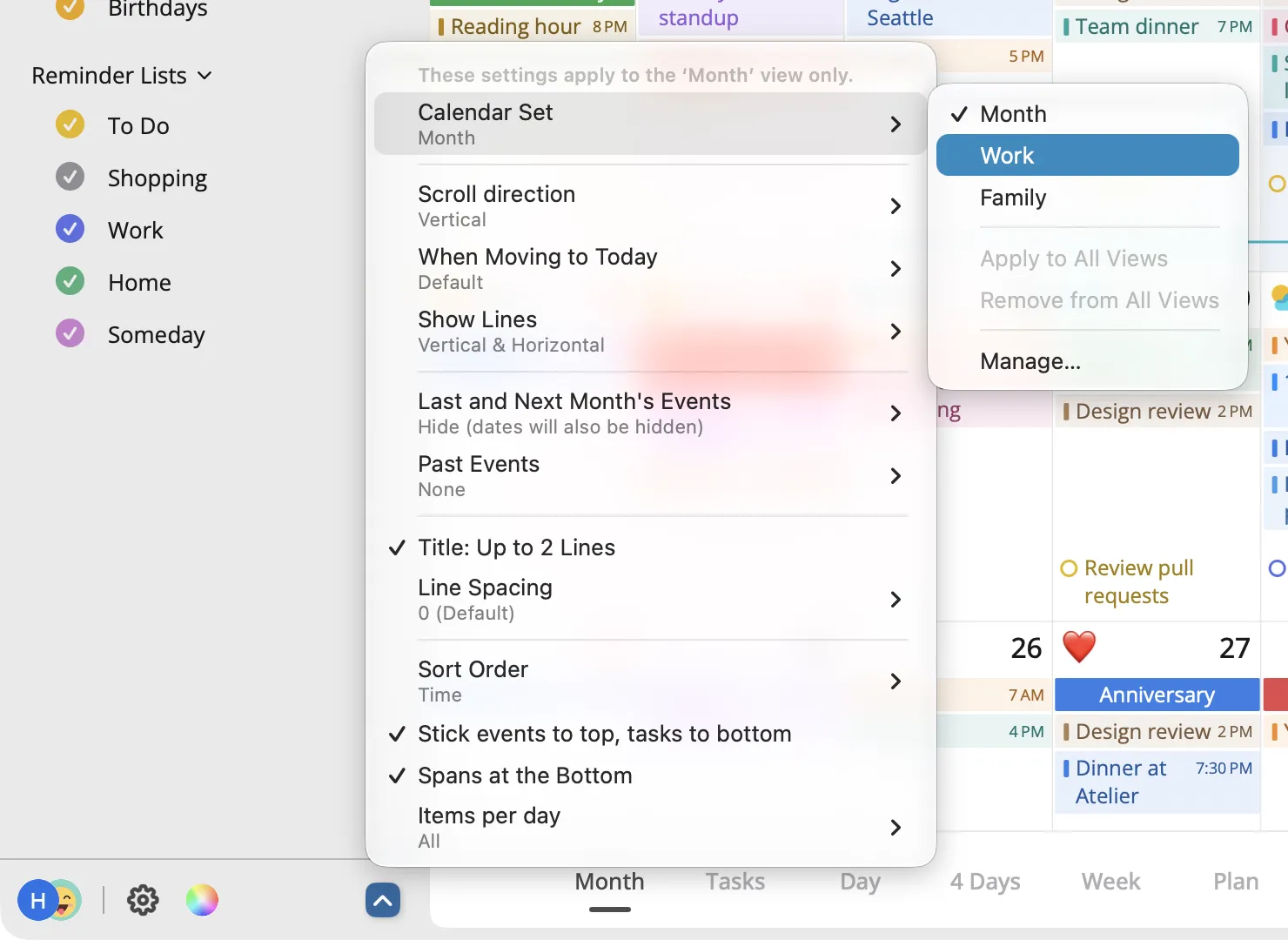
- Click the up arrow button at the bottom right of the sidebar and choose Calendar Set.
- Pick a set. The view now shows only those calendars.
While a view uses a set, the checkboxes in the sidebar edit that set. Any other view or widget using the same set changes with it.
To go back, pick the first item in the list, named after the view. That’s the view’s own set, and your earlier choices are still there.
Switch every view at once
In the same Calendar Set menu:
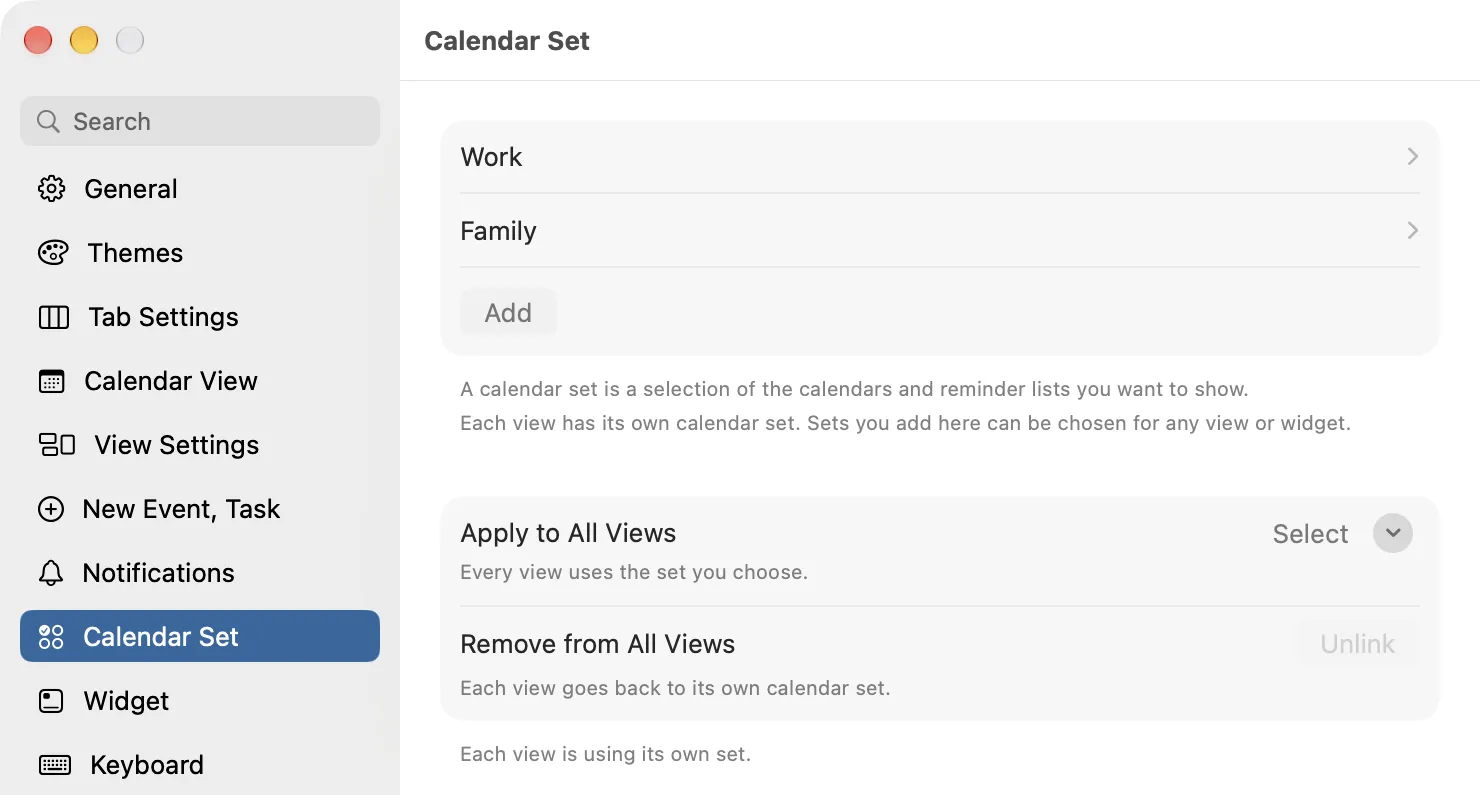
- Apply to All Views puts the set you’re using in this view on every view.
- Remove from All Views sends each view back to its own set.
You can do the same in Settings → Calendar Set, under the list of sets.
Widgets
Each widget picks its own set. Right-click the widget, choose Edit with its name, like Edit “Month”, and pick a set. Applying a set to all views doesn’t change your widgets.
Good to know
- Deleting a set sends the views that used it back to their own sets.
- Sets are kept on this Mac.
Updated November 22, 2026