Find any event
Search events and tasks by title, place, notes, or the people invited. Results show up as you type.
Know what you’re looking for but not when it was? Type a word and Across finds it.
Search
- Click the magnifying glass at the top right of the window, or press ⌘F.
- Start typing. Results appear on the right as you type, earliest first.
- Click a result. The view moves to that date and selects the event.
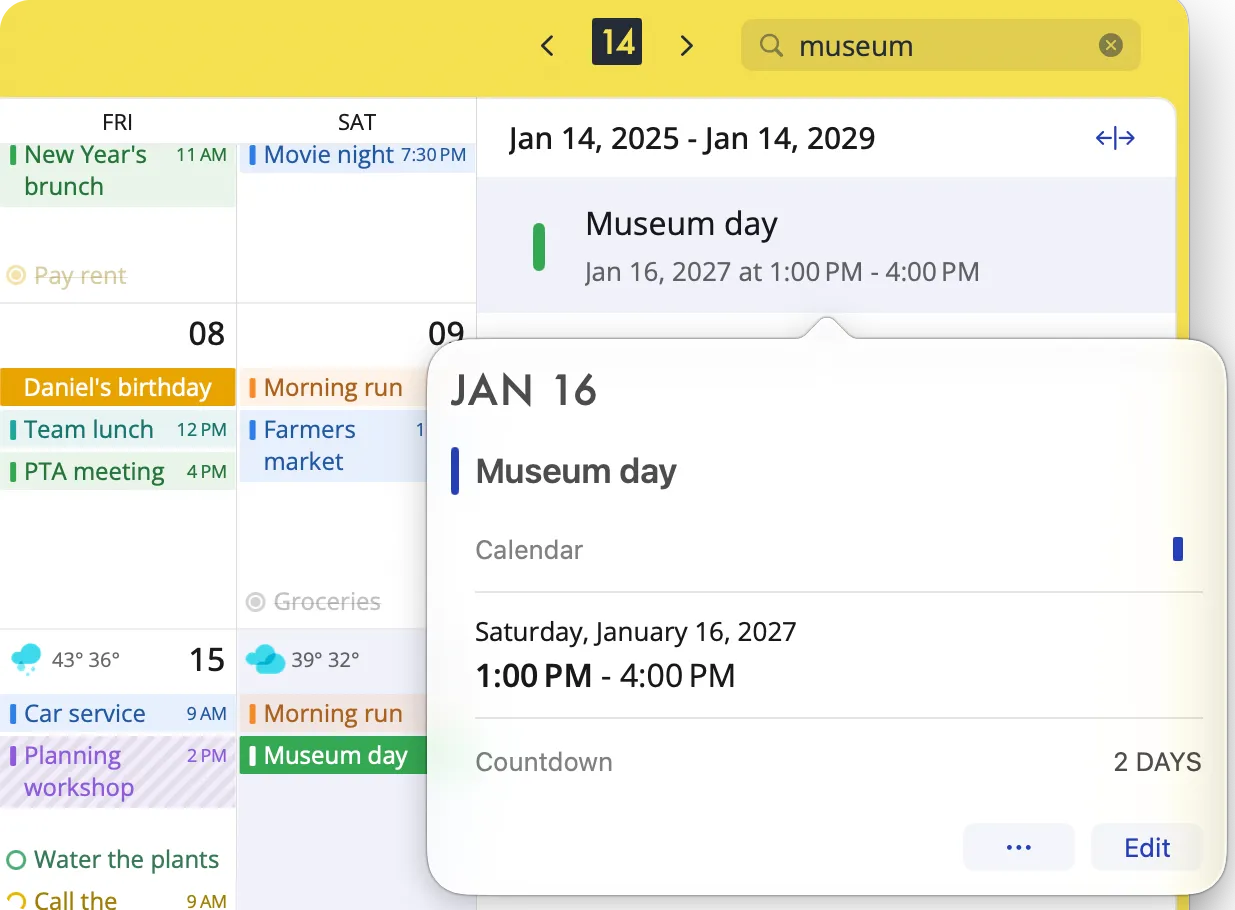
Press Return to jump to the result closest to today. To close the search, click × in the search field or press Esc.
What it looks through
- Titles, places, and notes, and the names and email addresses of people invited
- Events and tasks, including tasks with no date
- Capital letters and accents don’t matter. cafe finds Café.
Search covers the calendars shown in the view you’re in. In the Tasks view, it finds only tasks.
Look further back or ahead
Search starts with two years before and two years after today. The dates are at the top of the results. To go further, click the ←|→ button next to them and choose Earlier (2 Years) or Later (2 Years).
Good to know
- The search stays open when you switch views. It works in every view except Templates and World Time.
- With the search field empty, your recent searches appear. You can turn them off or clear them.
Updated November 22, 2026